

The foremost action you need to undertake whenever switching your phone is getting all your contacts. Starting with a new device can be very challenging; you cannot connect with almost anybody until you have your contacts.
Over 50% of the iOS users struggle to move data from iPhone to Android because of the difference in their Operating Systems. Not just Contacts but also texts and emails, photographs, movies, music, files, etc., should get transferred between iOS and Android.
But how exactly can you make the data transfer which seems almost impossible?
Don’t be afraid! This post will show you how to transfer contacts from iPhone to Android, including the latest iOS 15 update!
What Makes Transferring Contacts From iPhone to Android Devices Challenging?
The operating systems in Android and iOS devices are different. This means that a file or application supported on Android is not similarly supported on an iPhone. It is especially true for the Latest iOS updates like iOS 15, present over the recently released iPhone 13. And hence while switching phones, transferring your contacts and data from iPhone to Android could get tricky.
For this, you need software solutions like Dr. Fone – Phone Transfer to complete the task. Now let us learn how you can transfer your data using Dr.fone.
Dr. Fone – Phone Transfer: A Simple One-Click Solution To Move Contacts From iPhone To Android And Vice Versa
Dr. Fone is the most straightforward approach to migrate all of your contacts from one device to another, regardless of an Android or iOS device.
Interestingly, the application works both ways, providing you with cross-platform transfers.
Follow the instructions below to discover how to transfer contacts from iPhone to Android:
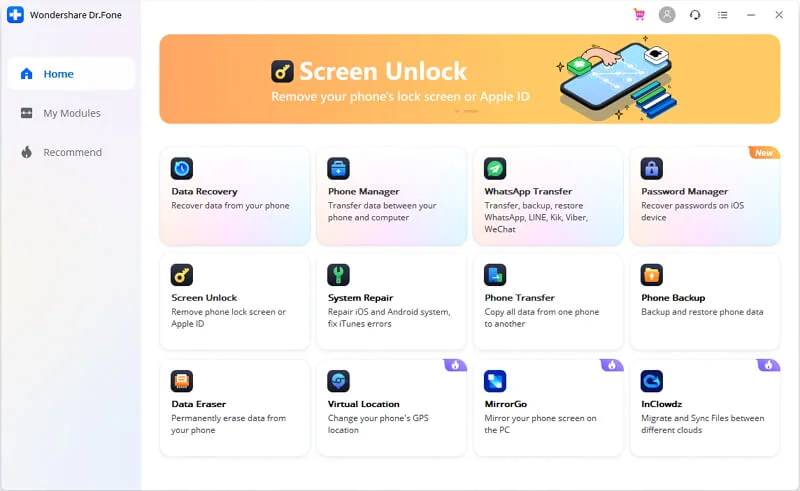
- Download and run Dr. Fone – Phone Transfer onto the PC. Just start the program to transfer the contacts.
- Select the option saying “Phone Transfer,” link your Android and iPhone devices to the PC.
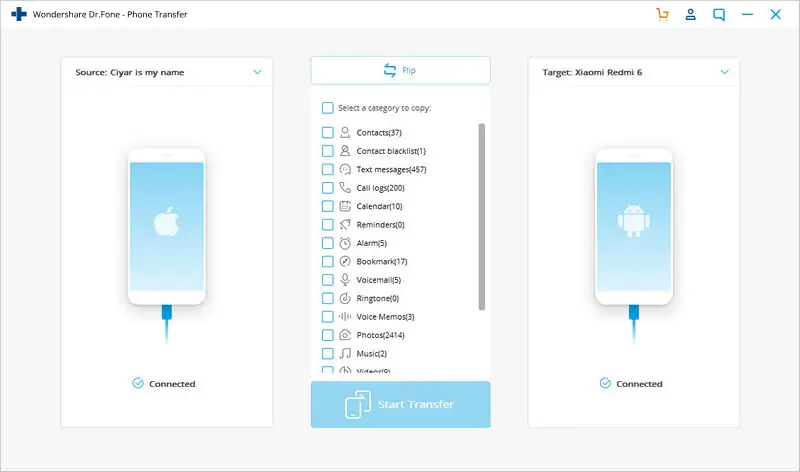
3. Once connected, the PC should automatically detect the devices & identify one as the source and the other as the destination. To change their positions, hit the “Flip” option.
4. You may finally transfer the contents. Choose “Contacts” for exporting the contacts to your new Android device. Just tap on the “Start Transfer” option.
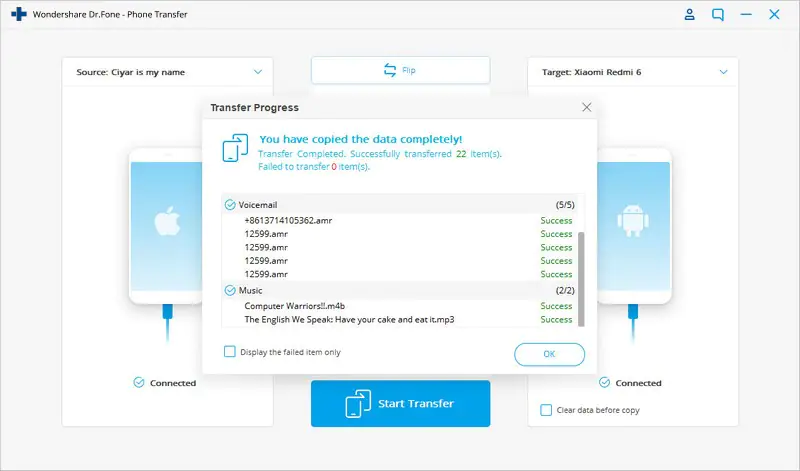
5. Once the procedure ends, you get notified. And well, that is all!
Other Ways To Get Your Contacts From iPhone To Android
Method 2: Utilizing Gmail, transfer data from iPhone to new Android phone
You can also utilize Gmail to move your contact list from iPhone to Android or vice versa. However, it takes more time because contacts are sent via Wifi/mobile internet connection.
Method 3: Move your music with iTunes
If you do not want to use any of the mentioned options, you could also use iTunes transfer contacts from iPhone to Android. All you need to do is choose “Transfer Purchases,” and your iOS device prepares all the media in your iTunes library to be transferred to Android.
What Makes Dr. Fone Stand Out From Other Data Transfer Apps
The unique features of this solution make it stand out from the other available data transfer applications. Let us check them out.
- With this transfer program, you may transfer a variety of 12 different kinds of files: images, video files, contacts, blacklisted contacts, texts, caches, calendars, audio notes, audio files, alarm recordings, call recordings, and tunes.
- Supported on Android 11 as well as the most recent iOS 15, the iPhone 13 operating system.
- Data Transfer functions flawlessly for over 8000+ devices.
- Helps you move to another phone in under 3 minutes, which hardly any other application can offer.
- Users can upgrade to the commercial edition to access more sophisticated features.
In conclusion
It is simple to move your contacts and other data from iOS to Android devices using a competent, thorough, multipurpose program like Dr. Fone-Phone Transfer. This application’s data transfer rate is speedier than any other method, plus it is also simple & highly effective. If you’re looking for a quick, easy, and secure solution to transition from iPhone to Android, Dr. Fone is the best solution to go.
Not only can you move contacts, but you can also use it to move various forms of other files quickly. Dr. Fone easily enables different devices, including all Android/iPhone to Android/iPhone transfers.
